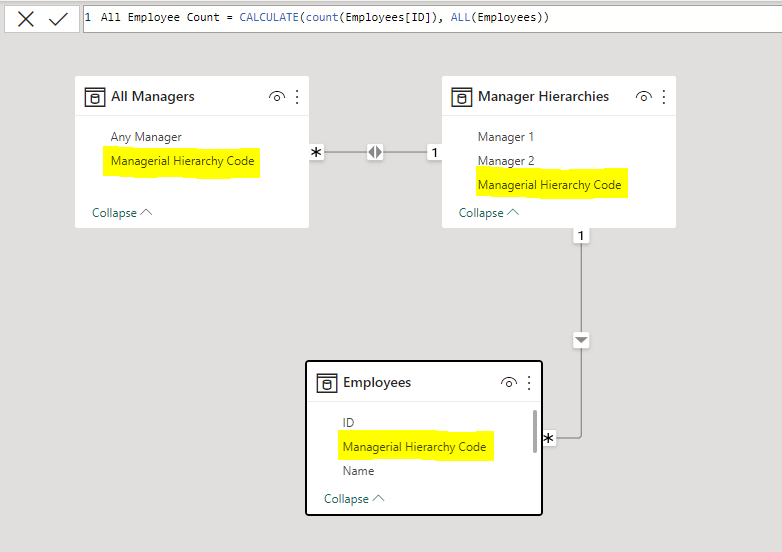
I’m having an issue with the ALL function interacting with a portion of my data model. I have a bridge table set up to allow users to filter on “Any Manager” regardless of the manager’s level. This functions as intended.
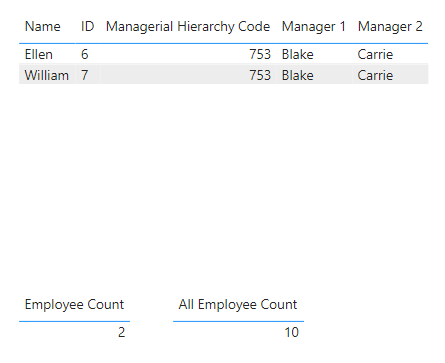
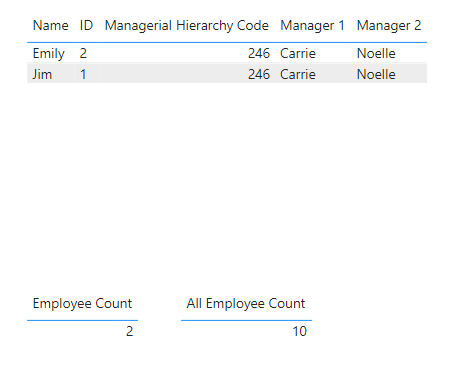
Searching for Carrie as a level 2 manager brings up 2 employees
Searching for Carrie as a level 1 manager brings up 2 employees
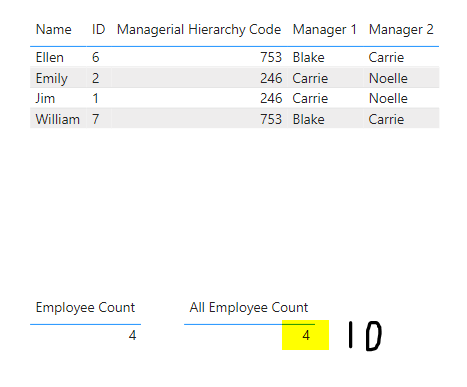
Searching for Carrie under “Any Manager” brings up 4 employees. However the result of the ALL Employee Count is now “4” instead of 10 .
Despite the “ALL” Function in my All Employee Count calculation
All Employee Count = Calculate(count(Employees[ID]), ALL(Employees))
The calculation is still using the the All Managers table/filter in the context. Has anyone come across this issue before? Is there a workaround or another calculation that would work to ignore any filters passed down from the All Managers Table?
As you are applying filters to the dimension table field any manager, have you tried removing the filter explicitly from the field being filtered and does it give the same results?
I would also be careful having multiple places to select manager, as if your measures are coded for one field and the user picks another you may get inconsistent results it may be best to hide the ones in the bridge table and keep all managers table, the bridge table is just enabling the relationship to function correctly.
All Employee Count = CALCULATE(count(Employees[ID]), REMOVEFILTERS('All Managers'[Any Manager]))
Honestly im not too sure, but it is generally better to remover filters with remove filter or all from specific dimension tables removing only what you need, as you were removing all filters from the fact table and then applying a page level filter to the dimension table it could be order of operations of the filter pain over filters overwrite other filters, so in your case the filters removed from the fact and then a new one applied to the dimension which takes affect, when removing it from the dimension table as one exists that takes precedence over the other. Its just a guess, maybe other users could confirm or explain the real reason.
ALL/REMOVEFILTERS work on the concept of expanded tables, expanded tables concept basically means internally the table on the Many side can be considered to have all the columns of the table on the one side of the relationships. In your case this is applicable twice.
Employees table can be thought of as having all the colulmns of Manager Hierarchies and All Managers will have all the columns of the Manager Hierarchies. Now there is no internal expansion, it is a theoretical concept on which whole DAX language works, and easy test for expanded tables is to use either SUMMARIZE or RELATED, RELATED grants access to columns of expanded tables and SUMMARIZE groups by the columns of Expanded tables.
Table expansion doesn’t stops at one step it can travel as many relationships but following a Many to 1 path for example Sales → Products → Subcategory → Category etc is an easy pattern to understand.
Now going by the Expanded table concept if Employees has access to column of Manager Hierarchies then that means if you REMOVEFILTER from Employees then it will also remove any filter from Manager Hierarchies. However, Manager Hierarchies can still be filtered by All Managers (as All Managers isn’t part of the table expansion of Employees). So ALL removes the filters but after that the Filter of Carrie is still there, that’s why you get a 4.
Now to make this work either you can use ALL/REMOVEFILTER on many tables or just use ALLCROSSFILTERED which removes the filter propagated by either Many to Many or Bi-Directional relationships.
Cheers, that makes sense, the filter remains because its on the many side of a many to one relationship, and survives the remove filter operation.
Now I understand what is happening, I think I still prefer the remove filters approach removing the least amount of filters needed from the dimension table, and now I know why its working its a tactic that sets your future self up for success when users are applying filters that could mess with your calculations.
 .
.